


VAT Filer – Importing CSV or Excel values?
Article ID
kas-0010
Article Name
VAT Filer – Importing CSV or Excel values?
Created Date
5th January 2021
Problem
Importing into VAT Filer
Resolution
If you have any VAT errors/crashing when importing a CSV/EXCEL then read this KB
The VAT Filer software has two methods of import that are available to all users, please find steps below on how to use each method.
Providing all the steps above have been correctly followed, you should now see your figures appear in the boxes.

Method 1 – Import from Spreadsheet
With the spreadsheet import, again it is important that the format of the figures for importing is the same as importing.
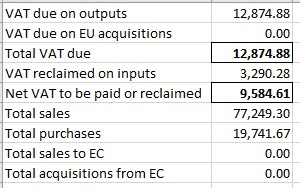
However, for this method the csv document needs to be closed.
Open VAT Filer and choose the obligations you are looking to import into. Press the import button and choose spreadsheet. This will open the Spreadsheet Import mapping screen.
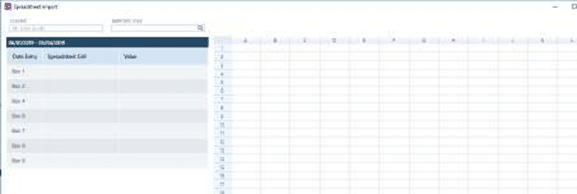
Press the magnifying glass under IMPORT FILE and browse to your VAT spreadsheet.

Here you choose the field on the right-hand side to map to the box number. Right click on the amount and choose the box to link to.
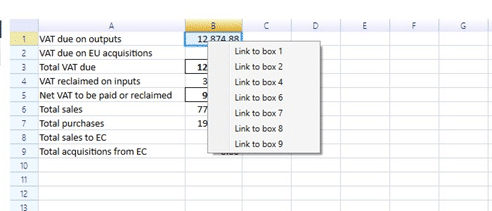
Do this for each of the boxes and when complete press IMPORT. You will then see the boxes have been completed
Method 2 – Importing from CSV
The CSV import, as with the spreadsheet options requires the figures to be in the same 9 box format.
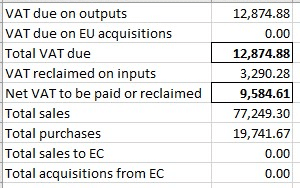
As with the Spreadsheet import, the csv file needs to be closed before attempting import.
Open VAT Filer and choose the obligations you are looking to import into. Press the import button and choose CSV. This will open the CSV Import mapping screen.
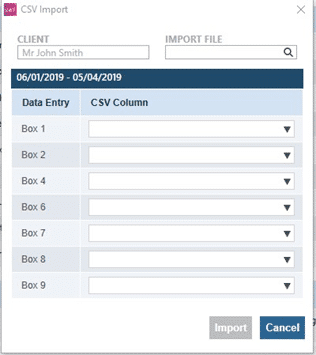
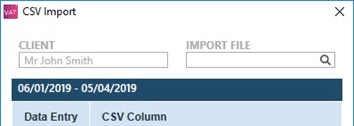
Press the magnifying glass under IMPORT FILE and browse to your VAT spreadsheet.
With the CSV import, you choose the field on the right hand side and the Box to import into.
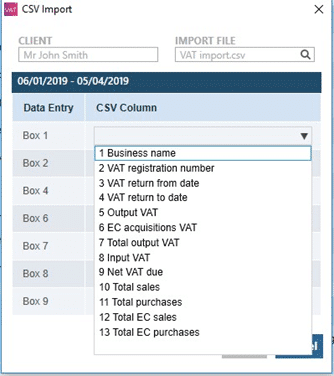
Do this for each file Box and then choose Import down at the bottom. You will then see the boxes have been completed.
We are sorry you did not find this KB article helpful. Please use the box below to let us know how we can improve it.