

Personal Tax MTD Quarters – How to import data per Quarter?
Article ID
mtd-quarters-how-to-import-data-per-quarter
Article Name
Personal Tax MTD Quarters – How to import data per Quarter?
Created Date
6th July 2026
Problem
Resolution
There are 2 main methods through to Personal Tax MTD
a. Using Personal Tax and importing CSV files. These are explained on the steps below (starts from step 8)
b. Using Accounts Production postings only – read this KB
8. 2026 onwards changes to data entry. In 2026 onwards, the income/expenses boxes may now be blocked as users CANNOT manually enter values directly (The Income Boxes etc are greyed out, see below for sole trade). HMRC do not want users to enter values directly into PT like before, it must now come from a EXCEL/CSV source and use the IMPORT tool. This lock out of the income/expenses entry is triggered by the MTD registration date entry in PT (Admin/edit tax return dates/ MTD registration date) and follows this HMRC rule.
Client is not required to do MTD quarters in 2026 but cannot manually enter data for property? This lock out of the income/expenses entry is triggered by the MTD registration date entry in PT (Admin/edit tax return dates/ MTD registration date). To unlock the property screens, load the affected tax year eg 2026, remove the MTD reg date, save. At the top of PT: Change year to the next tax year eg 2027, now enter in the MTD reg date, save. This will now only lock out the 2027 tax year screens and NOT affect 2026 – you can now enter data again for 2026.
Note: Only enter a MTD reg date in the correct Tax Year. For example a date of 05/04/2026 should only be entered in the 2027 tax year (and not 2026 tax year – at the very top of TP, find the year selector). If you enter the reg date in the wrong tax year, it may lock out the income/expense boxes and stop all manual entries for the wrong tax year.
Warning: To enter 2026 values into a 05/04/2026 period then use the IMPORT tool. Do not change year to 2025, then open the 05/04/2026 and manually enter values into each quarter and avoid the import tool. This may cause incorrect calculations to show in 2026. If this needs to be corrected, delete the 05/04/2026 period completely (click NEW at very bottom), restart PT, add back the period 05/04/2026. Change year to 2026 and retrieve the periods again and use the IMPORT tool.
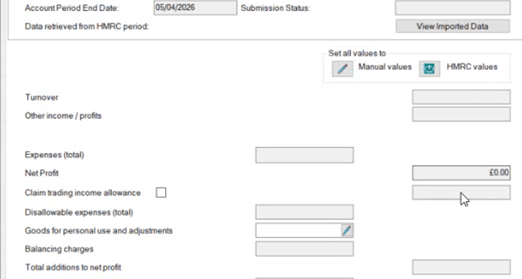
9. If a Trade Type – Close the (Trade) Gross Profit screen and go to the very bottom of the screen – Users can only use a new ‘Import postings‘ button and click ‘IMPORT FILE’ at the top tool to import a csv file. You can use the provided IRIS import csv/excel templates:
Click on ‘SETTINGS‘ on bottom left, then ‘IRIS import templates‘ and it will list Excel and CSV files – Choose the Sole trade or Property Excel. Or go to this template link or the MTD help the site here (click Personal tax and then MTD).
Open the relevant IRIS Excel file (its easier to use then CSV) – type in the RENT value and the relevant Expense types under the ‘IRIS Category’ with their date which must fall into the correct quarter period, then save as a EXCEL and also save as CSV file and close it. The importing of data can only be done using CSV.
If a Property type – on the summary screen, on the right of FHL property options – Other property options – select ‘Import from File’. If the property income is shared between 2+ people then ensure the quarter import has the clients correct share of the profits/expenses etc. If the income values is coming from another source and already set up the % split between partners in PT then MTD quarters should pick up the split of values.


10. Ensure the Excel entries are saved as a CSV file, then import the CSV data into PT. The values now show in a summary screen to allow a final check before importing (this also allows changing of a category). If correct now click IMPORT. The data will be transferred into PT for the relevant periods sole trade. Exit the import screen so on the main PT screen – on the TOP RIGHT click the icon: ‘Digital Tax Hub’ and it will now show the Trade or property on left side tab- click the trade name or property and the data will appear in the relevant quarter to allow you to check, finalise and submit.
When importing a CSV file for the Quarter but get a error? Review the original excel/csv – its because it may have a empty 2nd row at the very top below the headers (the empty space example is shown below on left side – the ‘greyed out row’ counts as a empty space. Your instinct is to ignore the greyed row) – just make sure that top space is filled in (eg move everything up one row), resave the Excel and CSV, and import it again.

We are sorry you did not find this KB article helpful. Please use the box below to let us know how we can improve it.