


Business/Personal Tax submitted- HMRC confirmation receipt, email ,IR Mark and Transmit Screen
Article ID
business-personal-tax-submitted-hmrc-confirmation-receipt-and-email
Article Name
Business/Personal Tax submitted- HMRC confirmation receipt, email ,IR Mark and Transmit Screen
Created Date
28th November 2023
Problem
IRIS Business/Personal Tax submitted- HMRC confirmation receipt and email and IR Mark
Resolution
When you have successfully submitted a CT600/SA100/Trust tax etc you should receive two items back- the Receipt, the HMRC email confirmation and the IRIS Transmit Internet Return Screen will be updated. The tax return may also have been successfully received by HMRC but you have not received their email OR HMRC have not received the online submission.
HMRC systems– if there are any HMRC technical issues then the Receipt, Email and the Transmit screen ‘status’ will be all affected (On busy periods users have experienced missing/slow emails and missing submissions).
Receipt: (We refer this as the ‘1st receipt’) This should appear on screen after your accepted submission. You can keep a copy if you need evidence it was submitted. If you do not have this then the tax return may not have been sent.
HMRC email confirmation: Once submitted, HMRC will email that they have received the tax return (if you have your email address saved in IRIS). Note confirmation emails from HMRC are never received via IRIS and will not block these emails (unless your emails are IRIS Hosted). When you submit it online, IRIS only uses your email to allow an automated response from HMRC to be sent directly back to your email.
IRIS Transmit Internet Return Screen: It should show status of ‘Accepted’. If this is empty or shows pending/queried then read further below. If you have one/both receipts then HMRC did receive it but it may not have triggered the ‘Accepted’ status in IRIS. It will show the user who generated the return. Read step 8) below for methods to submit.
IR Mark: The ‘IR Mark’ is only created when you generate the Tax return (click ‘Internet return’ and proceed with it) and is a unique IRIS internal reference code for this one tax return, for your use as the Accountant. It appears on the top right of the TR (It is not created when its submitted). HMRC do not use this IR Mark for their own online submission systems.
1.This email confirmation is sent from HMRC and dependent on their services, it could be sent quite soon or later (for example: if a busy period then the email may take longer to be sent out). Note that IRIS cannot block these emails as HMRC emails are sent directly to your email address (unless your emails/outlook are also hosted by IRIS etc), please read the checks below:
2. HMRC emails are sent to your email stored in IRIS here: Log into IRIS as MASTER, load PT/BT, load any client , Setup, Practice options, Tax options and check all the tabs for your ‘Return e-mail address’ (we recommend you delete it and type it back in manually and do not copy/ paste it in).
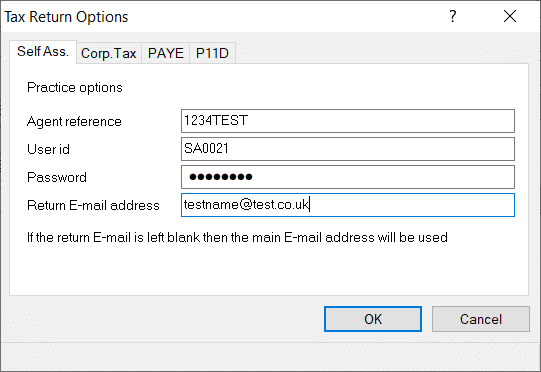
My emails are IRIS Hosted: Contact your IRIS hosting support OR raise a IRIS community case under a ‘IRIS Hosted’ subject
I have not received the 1st receipt: Check all of your DOC and record folders to see if a copy was received/saved. If you do not have this then there is no proof from HMRC that a return was received. If its says ‘Accepted’ on the transmit screen then we recommend you contact HMRC directly to check this. If its doesn’t state ‘Accepted’ – then regenerate a new return and submit.
I have not received the HMRC email confirmation: Any confirmation emails coming from HMRC are not processed OR received via IRIS and IRIS will not block any these emails (unless you are IRIS Hosted with emails). When you submit it online IRIS only uses your email to allow an automated response from HMRC to be sent directly back to your email.
If its just one client but other have been sent successfully then go through all the steps below to check agent/branch/alternative settings.
If ALL clients are affected and you tried all the steps below but still no email, then its more likely there is a Environmental/Email settings issue on your PC/Server/Host side OR a larger HMRC issue.
a) Load the affected client- Client, View and Accountant- make sure its sent to AGENT. If set to Branch or Alternative, then it may have different credentials/email. For example: If the client below was set to Alternative, click the mag glass, highlight that alternative, VIEW, Tax options and check every tab for the email address. You decide to change the email here or switch to AGENT (We recommend to speak to your team first).
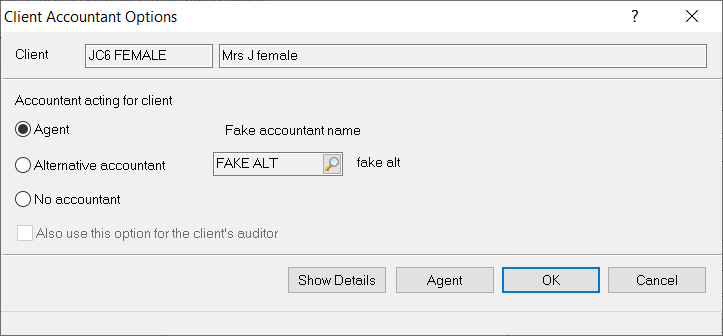
b) Whether its set to Agent/Alternative/Branch: Check your email (Setup, Practice options, Tax options) if its correct, delete the email and type it back in (do not copy and paste it in, as it may contain empty ‘spaces’, these spaces count as a digit and may not be recognised as a valid email). Regenerate as Amended and submit again.
If you have already followed the steps above but still no email, then it can be these causes:
- HMRC technical issues when sending emails causing delays – it may arrive later on.
- Blocked by your environment/email systems- contact your IT team to check your security, firewalls and allow permission for the HMRC email to be received. If its provided by a 3rd party email service eg yahoo, hotmail, google etc, then you would need to manually check the email settings. If you have different ‘branches’ set up all over the UK, then you need to check the environment/IT for the affected branch ‘Office’ etc. We cannot advise further on this as your IT setup and each of these emails service has their own different settings. A list of possible HMRC links here.
- If you have waited and still no HMRC email, then contact HMRC Support. If you have the 1st receipt then its proof it was submitted to HMRC. Ask HMRC if they have records of a email being sent to your nominated email for the clients tax return (provide the date/time etc when it was sent), as HMRC emails go directly to your email address (as IRIS will not block any emails being received – unless your email/outlook are IRIS Hosted).
- If you have the 1st receipt but the status is not ‘submitted’ – eg pending/queried/empty etc then contact HMRC as it could have been sent but it did not trigger the relevant ‘submitted’ status back into IRIS PT/BT. If its a busy submitting period eg end of Jan then there can be issues like this.
- If you have no receipt and no email and the Transmit Screen status is pending/queried then read the KB LINK.
- Try using a different email or even a ‘NON WORK email’, speak to your manager on this – if that new email still doesn’t work then it could be a HMRC issue.
- NOTE: There can be random cases where you receive only some responses from HMRC but the rest is absent – eg the receipt missing, the HMRC confirmation missing, Transmit screen shows pending/empty, HMRC did not receive the online submission. If you ever only receive either the receipt OR the HMRC confirmation, then this still confirms that HMRC acknowledged the online submission (or you wouldn’t get either of them) and they may have misplaced the online submission or did not trigger the ‘Accepted’ status on the Transmit screen. If HMRC state they have not received it then you will need to contact HMRC Support and state you received the receipt/or confirmation and ask they check why the submission is missing (they may ask you resubmit as new/amended).
- Transmit Screen: If HMRC have received it and you have either of the two receipts but the ‘Accepted’ status is empty, then regenerate an amended return with no changes and submit again. If the status is pending/queried then read the KB LINK. If you cannot submit as new or amended then contact HMRC to VOID the submissions they already have.
IR Mark on the Tax return – The ‘IR Mark’ is created when you generate the Tax return (its not created when its submitted) and is unique IRIS reference code to the one tax return. When you view the Tax return you can see the IR mark on top right and you should keep a copy of it. When you generate or transmit the Tax Return to HMRC, you can also view this IR Mark. On the Transmit screen, click on the relevant row, right click it, go to Properties and a screen will appear to show the IR Mark etc. Note: If you use the ‘Reset Status’ option it will remove the Status and transmit dates BUT it will still keep the IR Mark and generated date. If you regenerate another return then will will replace the saved IR mark with a new one.
Warning: If you do not keep a copy of the tax return OR you delete the row which shows it generated/transmitted, then this IR mark cannot be recovered (generating a new return will create a different IR mark).
HMRC state they have not received the online submission: If you have contacted them but they state no submission was received, however you have all the above ‘receipt/email’ from HMRC then state you have evidence it was sent and how to resolve the lost submission. They may ask you send again, if so then reset and delete the accepted record on the transmit screen and regenerate as NEW again and submit. If you now get a warning ‘HMRC already has received the submission’ then contact them. Do note there can also be actual time delays from the HMRC side – see below:
Logged onto my HMRC account but the clients online submission is missing: If you have the receipt/email/accepted status- There can be delays from the HMRC where the record of the online submission will not show on the HMRC side until later (hours/days etc), do recheck often and the submission may appear (in busy periods this may happen more often).
Missing IR Mark on the Tax return – When you generate a tax return but the top right IR mark is missing. First ask other users to try on another pc as this can be caused by your browser and print setup. For Example: If you have Chrome then it could cause visual problems if the PDF files on your local desktop are printed by accessing Chrome instead of Adobe. Switch it back to Adobe.
How to delete a transmitted return record? Load the Transmit screen, find the relevant record and Click DELETE at the bottom (You may get this warning below when deleting). This will only delete this record from this screen, an accepted submission will still be with HMRC. If you also need to delete the record from HMRC then you need to contact HMRC Support and request to VOID that specific submission. Note: If you use the ‘Reset Status’ option (right click the transmitted row before deleting) it will remove the Status and transmit dates etc.

We are sorry you did not find this KB article helpful. Please use the box below to let us know how we can improve it.