


IAS: ‘Return in use?’ Please try later OR ‘All Tax Licenses are in use’ OR ‘Logical lock’- REMOVE END SUSPEND function
Article ID
iris-accountancy-return-in-use-please-try-later
Article Name
IAS: ‘Return in use?’ Please try later OR ‘All Tax Licenses are in use’ OR ‘Logical lock’- REMOVE END SUSPEND function
Created Date
8th June 2023
Problem
IRIS Accountancy: Return in use? Please try later - can appear in PT and BT etc usage OR All Tax Licenses are in use
Resolution
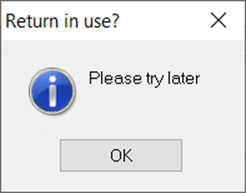
Return in Use? Please try later: IRIS has detected that another colleague/user has already loaded this client you are looking at and stops access to ensure data integrity – For example you have a PT client loaded up and another user tries load the same PT client on another pc OR you load P11D and look at this specific staff member linked to a company- if this PT client is also part of this company in P11D then you can get this appear as the PT client is already being looked at from another pc. If you cannot identify the users who have accessed this client: 1) Ask all users to close IRIS/restart the server and only you login first and access that client and then ask users to login 2) Use the END, SUSPEND, REMOVE control functions (see below).
NOTE: If you also get the ‘All Licenses are in use‘ when in for example Personal Tax and just loaded a client for a specific year and you get that warning – then you may have exceeded your license limit for clients, please read this KB and check your clients.
All Tax Licenses are in use: This means you have other colleagues/users already on this specific program and thus using up all your available licenses (You may have a license limit on how many users can access the specific tax program at the same time). Ask the other users to exit the program and once they have confirmed this to you, then you log back into IRIS and load the program. If you have checked and the other users have confirmed they exited (Or you are the only user) but you still get the warning then use the below END, SUSPEND, REMOVE control functions steps. If you do need to purchase more licenses as you have more users who need access then contact the IRIS Billings/License team.
‘Logical lock’ when loading a specific client: Apply the control function steps below

NOTE: If you also get the ‘All Licenses are in use‘ when in for example Personal Tax and just loaded a client for a specific year and you get that warning – then you may have exceeded your license limit for clients, please read this KB and check your clients.
If you are the sole user of IRIS on one pc/or a team of users which you can contact then ask all users to log off and restart IRIS and load the program again, if that fails then follow the steps below.
END, SUSPEND, REMOVE, REFRESH control functions – we recommend your System Administrator runs this and is accessed/ enabled via File and System Maintenance, System and Login:
- Open IRIS Accountancy Suite and File and navigate to System Maintenance.
- Once there, click on Practice, Practice Options. On the screen that appears now go to the ‘General’ tab and make sure the ‘activate features’ box is ticked (at the very bottom)
- Afterwards, you will need to give privileges to the user who wishes to run this new feature. To achieve this, please do the following:
- On the window that appears, click on the privileges tab, scroll down to the bottom and tick the options you wish to enable as per the screenshot below. Once done click save and close the windows down.
- In System Maintenance click on Staff, then select Staff Maintenance in the drop down below.
- Highlight the user you wish to amend the privileges and click view.
- On the window that appears, click on the privileges tab, scroll down to the bottom and tick the options you wish to enable as per the screenshot below. Once done click save and close the windows down.

Once completed, in File and then ‘System Maintenance’, ‘System’ then ‘Login’ and you should see the buttons End, Suspend, Remove, Message appear as per below. Choose which option against the relevant row of IRIS USERS.

If none of the steps above work and you still get the same warning –
- Book a time and date to restart your IRIS system and server etc
- Ensure everyone logs off from using IRIS at the arranged time
- Restart IRIS
- Users log back in. If you want to ensure you now have access to a locked out client – only ask ONE IRIS user to be the first to login and access the affected client. Once they have access now ask all other users to login.
We are sorry you did not find this KB article helpful. Please use the box below to let us know how we can improve it.