


Personal/Business/Trust Tax – Failed Authentication, check Client UTR, ID and Password
Article ID
personal-and-business-tax-failed-authentication-check-client-utr-id-and-password
Article Name
Personal/Business/Trust Tax – Failed Authentication, check Client UTR, ID and Password
Created Date
13th July 2021
Problem
IRIS Personal/ Business/Trust Tax - submitting a tax return and get Failed Authentication, check Client UTR, ID and Password. BT error 1046
Resolution
The ‘Failed Authentication’ (including Error Code 1046 in Business Tax) warning normally means your HMRC Agent ID OR Password saved in IRIS Accountancy is not recognised by HMRC. First go through the 12 step checklist and if you pass these checks and still get the Fail Auth then proceed to the very bottom of this KB and apply the fix methods 1,2 and 3.
a) An incorrect entry, made a typo, added a space or used a ‘special character’ on the Agent Password field (As you cannot see the password on screen this is the most common issue). Using a special character in your HMRC password can cause this, see step 9.
b) An incorrect entry, a typo, added a space on the HMRC Agent ID field
c) You have used the ID/Password for your ‘Agents Services Account (ASA)’ instead of your correct ‘Agent Account’ id/password. These two HMRC accounts have different Ids/passwords. Do not use the ASA login details. If you are unsure which is which, then contact HMRC Support to ask they check.
d) An incorrect entry or a typo on the Tax Reference UTR for the client.
e) The affected client has been set up as a Alternative/Branch and its using a different Agent ID and Password then the one you use
f) You have not regenerated the Tax return, if you don’t do this the IRIS will still use the previous ID/password. You must regenerate a new return
g) You are not on the latest IRIS version and there have been HMRC technical issues which is blocking the submission
Please follow the steps and checks below:
1.You must be on the latest IRIS version – Help | About and Check for Downloads to update to latest version (We recommend you update to at least version ‘25.2.0’ which fixes known issues with the password saved in IRIS and then 25.3.0 next )
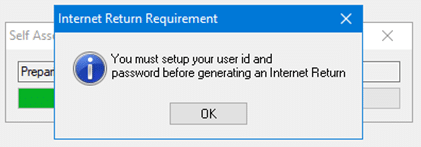
If you also haven’t entered an HMRC Agent ID/password, IRIS will automatically warn you. If you get this warning after submitting other tax returns fine then read the steps below especially the Agent/Alternative/Branch setup and recheck your entries in IRIS.
2. If on the latest IRIS version – Now regenerate the tax return again and submit it (if you do not do this then it remembers an old version/ID/password held within the Transmit Return screen).
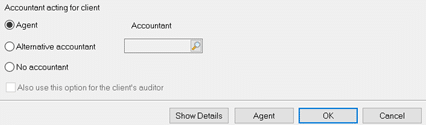
3. Client | View | Accountant – normally it should be set to Agent. If its set to Alternative or Branch then speak to your team to confirm if its correct, as ALT/Branch allows you to use a different HMRC ID/password to submit online. Read step 12 if its set to Alternative/Branch. Ensure it is not set to No Accountant or you wont be able to submit.
4. Client | View | Tax tab – check the clients Tax Reference ‘UTR’ code. Ensure there are no empty spaces after the last digit/letter. Delete the entry and manually type it in.

5. Setup | Practice options | Tax options on the right side (you may need to log in as MASTER user to access this).
6. Open the ‘Self Ass.’ or ‘Corp tax’ tabs. Are your Agent credential ID and Password correct? (Note: Trust tax uses the login details forSelf Ass. tab and the Agent Reference box is only for your own ref and not used to submit), You can do a quick check on the password- tick the ‘Self ass.’ tab and then the ‘Corp tax ‘tab – look at the length of the hidden characters as one might be shorter then the other – if one is different, delete both and manually type in the password in both.
NOTE: Please do not use the ID/password of your AGENT SERVICES ACCOUNT (ASA) – and only use your AGENT ACCOUNT login (both have different logins). There can be a rare occasion where you entered the ASA details and it allowed submissions but it may fail at any stage. If this happens you need to change the ID/pw to your AGENT ACCOUNT and submit (if that fails as well, contact HMRC support to check your agent account details and are linked to the clients correctly, they may apply fixes on their side). A IRIS user reported (who used their ASA) to us on what happened after HMRC applied a fix.
NOTE 2: Check you have the correct HMRC original Govt Gateway ID entered, and what is the agent ID? This is the ID code you use to login to the HMRC website. Warning: HMRC may quote on a letter ‘Your Agent ID is= a 25 digit code is given’, this is NOT the correct ID code to allow you to submit online (you may even get this two 25 digit code for Self Ass. AND Corporation letters). Also ensure there are no empty spaces after the last digit/letter.
Am I using the correct login? The HMRC Agent Services Account (ASA) login is the ID needed to submit only VATs and MTD ITSA. Do not use the ‘ASA’ to submit PT/BT/TT returns. If you login to the HMRC site and it says ‘Agent services account’ then you are not using the correct ID/pw.

7. You will now need to test this by logging into the HMRC gateway with the same ID and Password – eg using your HMRC Govt Gateway ID. If it logs in fine then go back to IRIS PT/BT and then delete both entries. Click OK and then go back in again and manually type in the ‘Agent ID’ and the ‘Agent password’ into the boxes carefully (‘Agent REF’ can be ignored). We recommend you do not copy and paste the ID and password and ensure there are no empty spaces after the last digit/letter.
8. Do not submit right away (e.g in the Transmit Screen) as it remembers the old login details. You MUST regenerate it again to pick up the ID/password and then submit (click the Internet return button etc).
9. If it fails again then re-check your HMRC Agent Password, if it contains special characters (for example, £, $, %, ! etc.) then this can sometimes cause the issue. Log into your HMRC site and edit the password to remove all special characters in HMRC, save and exit and then enter the new password into IRIS.
10. Log into your HMRC gateway using the HMRC original Govt Gateway ID entered (using the 12 digit code) go to the account and change the password so it only contains numbers and letters, save it. Then go back to step 5 and manually enter the updated password (do not copy and paste the password). You MUST regenerate the tax return again to pick up the corrected ID/password and then submit (click the Internet return button etc).

11. If it still fails then you need to call HMRC support and speak to a senior as there are issues where HMRC can block the submission from their side -also ask they check your Government gateway is set up correctly as well etc.
12. IF client accountant settings was set to Alternative or Branch
Alternative accountants are usually set up if a practice has several branches/offices which have their own Agent Credentials login details (that is, you don’t use one login for all the branches).
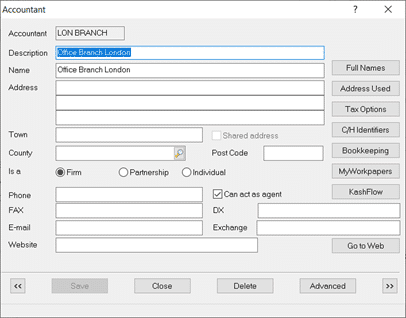
a. Client | View | Accountant. Set to Alternative and click the magnifying glass. Either create a new one or select an existing one.
b. You must tick ‘Can act as agent’ and click OK to save it and then click View on it again. More options will show (you may need to log in as MASTER).
c. Click Tax options and open the ‘Self Ass.’ or ‘Corp tax’ tabs. Complete the fields with the branches correct agent credential ID and Password. If it already has entries then delete it all, save, exit and go back in and manually type in ID/password again (do not copy and paste it). Also from Point 9) If the password contains a special character (for example, £, $, %, ! etc.) then this can cause the issue so see answer from point 9).
d. YOU MUST regenerate the tax return again to pick up the corrected ID/password and then submit (click the Internet return button etc).
13. If you have all the steps above and this is happening in Personal Tax then update to IRIS version 25.1.4 which fixes a known issue with the Failed Auth submissions.
An old issue from Dec 2024 to July 2025 (this has been fixed):
Failed Auth if you recently edited your HMRC password OR did not edit it- for example you logged into your HMRC account and edited your password or you did not change your password. If this is happening in Personal Tax then update to IRIS version 25.1.4.42 then regenerate/submit , also do not forget to go through the normal 12 point check list below (in case you have Multiple Agent setups).
Using the MASTER login, go to the ‘Tax options’ settings to add in the new password which allows you to generate and submit a client online fine, however for the 2nd client even when you regenerated a new return and submit you get ‘Failed Authentication’.
First method 1) Go back to Tax options settings and delete the ID and password, save, exit and then go back in and type in the ID and password in again, save, regenerate a new return and it can be submitted. Repeat these steps if you have a issue with the 3rd, 4th etc client so this has to be again and again.
Second method: 1) Log into IRIS as MASTER
2) Load PT or BT. Go to Setup/Practice options/ Tax options
4) Now do this one by one and go from left to right- eg start with ‘Self Ass.’ tab – manually type in the relevant password in the ‘Password’ field, then (not clicking OK) go straight to the 2nd ‘Corp tax’ tab, manually type in the password (not clicking OK) and continue until all FOUR tabs are filled in with their relevant password – THEN click ‘OK‘ at the very end
5) Regenerate the tax return and submit.
Third method: If none the workarounds above work then run this fix where you may need to change your HMRC password:
- Generate and attempt to submit a tax return
- Once the return fails, generate an XML report which will show the password being used.
- Run a XML report: go to: IRIS Main menu | File | Utilities. Then SQL | Extract XML | Enter the Tax product, Client ID and Year. Save the file locally, open up this XML file (use option ‘Wordpad’ however Win11 may not have it installed or use other apps like Notepad, word etc) and locate and note the password under the row <IDAuthentication> and then<Authentication>
- When you search for the XML and get ‘Unable to locate XML‘ – it normally means the tax return could not be found in the selected year. Redo the XML search correctly and also regenerate a new return again later (eg step 1)
- Sign into the HMRC’s website with your credentials and change your original password to the password shown on the XML report (exactly as it appears- if it shows the password as all uppercase then ensure the uppercases are used). Save and exit
- Go back into IRIS and re-enter this new password, save and re-generate and submit.
If you are on P11D: read this KB https://www.iris.co.uk/support/knowledgebase/kb/p11d-failed-authentication-check-username-and-password/
NOTE: The VAT Filer doesn’t require the agent detail entries like below. It requires a HMRC ‘ASA’ (Agent services account) login- read this KB
We are sorry you did not find this KB article helpful. Please use the box below to let us know how we can improve it.