


P11D – Failed/Missing Authentication, check Username and Password
Article ID
p11d-failed-authentication-check-username-and-password
Article Name
P11D – Failed/Missing Authentication, check Username and Password
Created Date
18th February 2022
Problem
IRIS P11D - when generate or submitting but you get Failed/Missing Authentication, check Client UTR, ID and check Password setup
Resolution
If you recently changed your HMRC password OR suddenly all your clients are getting the failed auth warning then read the 1st IMPORTANT paragraph of this KB about the passwords and use the workarounds listed. Like this one:
1) Log into IRIS as MASTER
2) Load PT or BT. Go to Setup/Practice options/ Tax options
4) Now do this one by one and go from left to right- eg start with ‘Self Ass.’ tab – manually type in the relevant password in the ‘Password’ field, then (not clicking OK) go straight to the 2nd ‘Corp tax’ tab, manually type in the password (not clicking OK) and continue until all FOUR tabs are filled in with their relevant password – THEN click ‘OK‘ at the very end
5) Regenerate the tax return and submit.
1.You must be on the latest IRIS version – check on Help and About.
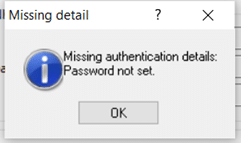
If you get ‘Missing Authentication details/password not set’: Client Magnifying Glass (top left) | View the company | Accountant | Set to ‘Agent’ and then check this, go to Setup – Practice Options – Tax Options – P11D tab – enter HMRC login information.
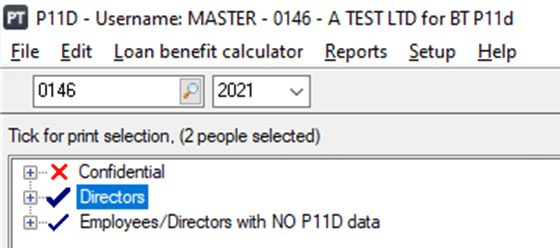
2. On the top left of the P11D where the company name ID is listed, select the magnifying glass and on the client select screen view that company:
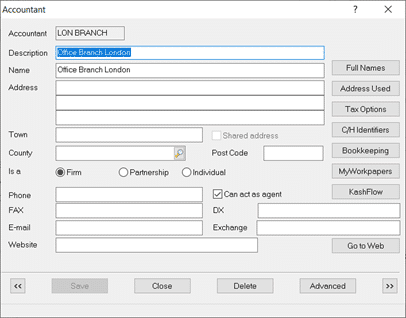
3. Select: Accountant – this normally is set to Agent. (If its set to Alternative/branch then speak to your team to confirm if its correct, if yes then read the very bottom of this KB). It MUST NOT be set to No accountant.
4. Client | View | Tax tab and check the PAYE code is correct. if the code is correct then delete it, save and click OK and go back in and manually type it the PAYE code in again and OK. Make sure you go through the rest of the checks below and regenerate the P11D after you do this.
5. Setup | Practice options | Tax options You may need to log in as MASTER.
6. Open the P11D tab – are your agent credential ID and Password correct? – check the password length as well. Test this by logging into the HMRC gateway with the same ID and Password. If it logs in fine then go back to P11D and delete that ID and Password. Click OK and then go back in again re-enter it again carefully and save. Please read the 1st paragraph of this KB about the passwords and fixes.
Do not submit right away as it remembers the old login details. Just regenerate it again and submit.
7. If it fails again then check your Agent Password. If it contains a special character (like £, $, %, ! etc.) then this may cause this issue. Log in to your HMRC gateway and change the password so it only contains numbers and letters, save it. Then go back to step 3), enter the updated password and regenerate the P11D.
8. If it still fails then you need to call HMRC support and speak to a senior as there are issues where HMRC can block the submission from their side.
How to set up ‘Alternative’ or Branch accountant (see step 1)
Alternative or Branch accountants are usually set up if a practice has several branches/offices which have their own Agent Credentials login details (that is, you don’t use one login for all the branches).
Client | View | Accountant – Set to Alternative or Branch and click the magnifying glass. Either create a new one or select an existing one. You must tick ‘Can act as agent’ and click OK to save it and click view on it again. More options will show (you may need to log in as MASTER).
Click Tax options and open the Self Ass. or Corp tax tabs and complete the fields with the branches correct agent credential ID and Password.
Original 2012 guidance (kept for historical reasons): Users are required to ensure that the correct User ID and Password have been entered into IRIS and also to check the PAYE reference for the employer as follows: 1. Log on to the P11D module and select the employer. 2. From the Setup menu select Practice Options. 3. Click the Tax Options button then select the P11D tab, ensure the correct User ID and Password have been entered. 4. Click on the magnifying glass to access the client browser, click on the employer then click View. 5. Click the Accountant button and if the employer has been assigned to an alternative accountant, click the magnifying glass to the right of this option, View the accountant’s details and click the Tax Options button to verify the User ID and Password entered here are correct then click OK 6. Click the Tax tab and remove the tax district number and the / from the PAYE reference box, click Save then Close. 7. Regenerate the P11D return. NOTE: – Ensure that the Tax District number is left in the PAYE district field. If the problem persists please contact HMRC.
We are sorry you did not find this KB article helpful. Please use the box below to let us know how we can improve it.